How to recover selected iPhone files from an iTunes backup
By Nicola EWN • Published: 22 Oct 2026 • 17:32 • 5 minutes read
Credit: Dr Fone
Introduction
Have you lost a few files on your iPhone but don’t want to restore the whole backup?
No worries! You may still have the option to retrieve lost files if you have an iTunes backup on your computer.
This guide will explain how to look through an iTunes backup, get a preview of the available data and choose only the files that you want to recover on your iPhone instead of having to restore all your iPhone’s content. We’ll also cover what you need to check before using a data recovery program for iPhone. Let’s get started with the iOS data recovery guide!
Part 1. What may be stored in an iTunes backup
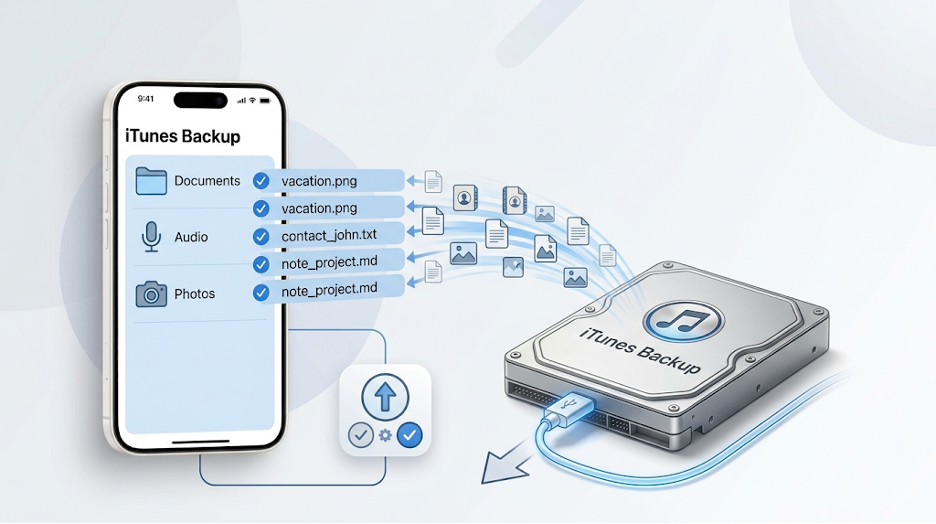
Backing up actually copies specific information from your iPhone, iPad, or iPod touch onto your computer. An iTunes backup will copy various files and settings over from your iPhone to your computer.
According to Apple, it could include text messages, notes, call history, favorite contacts, sound & widget settings, as well as the photos that you save or take with your phone.
But there are a few things you might find missing from the backup. For instance, music and video files as well as some images, will have to be downloaded by syncing them with iTunes.
So, what you can recover depends on what is actually in the backup and what your recovery tool supports.
Part 2. Why users may not want to restore the entire backup
Restoring your entire iTunes backup is a way of getting your whole phone back to an earlier condition. However, it can also overwrite whatever data and settings you’ve added since the last backup.
If you only want to retrieve just a handful of photos, messages, contacts or other files, restoring the whole contents may not be the ideal option.
Recovery software helps you look for the data that is available and get back files which you require. This helps you to keep your present iPhone data intact rather than overwriting it just to fetch a few missed documents.
Part 3. How to restore an existing iTunes backup
If you have previously made a backup of your computer, you can simply restore the backup file to your iPhone.
Step 1. Connect and Select Your iPhone
Use a USB cable to connect your iPhone to the computer. Open iTunes, Apple Devices, or Finder, depending on your computer.
Enter your device passcode or select Trust This Computer if asked.
Note: On Windows, Apple now suggests using the Apple Devices app. You can also use iTunes. On Mac, Finder is what you will use on macOS Catalina or later, and iTunes is used on macOS Mojave or earlier.
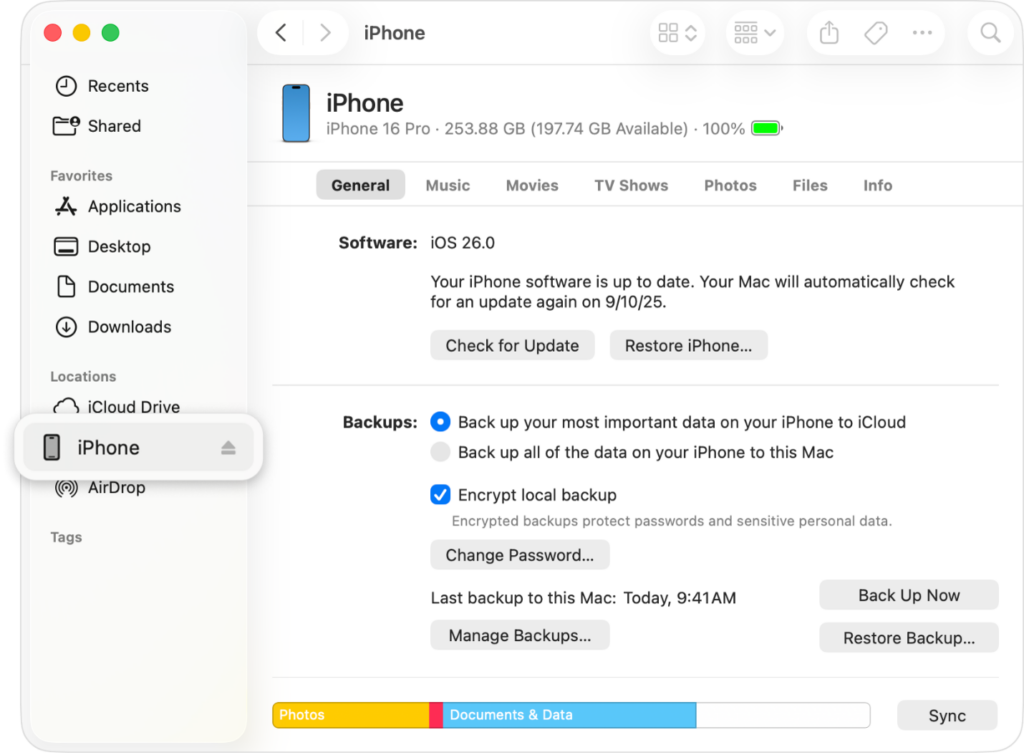
Step 2. Open Restore Backup
Click on Restore Backup. This option is probably in the general/device summary screen of the software you are using.
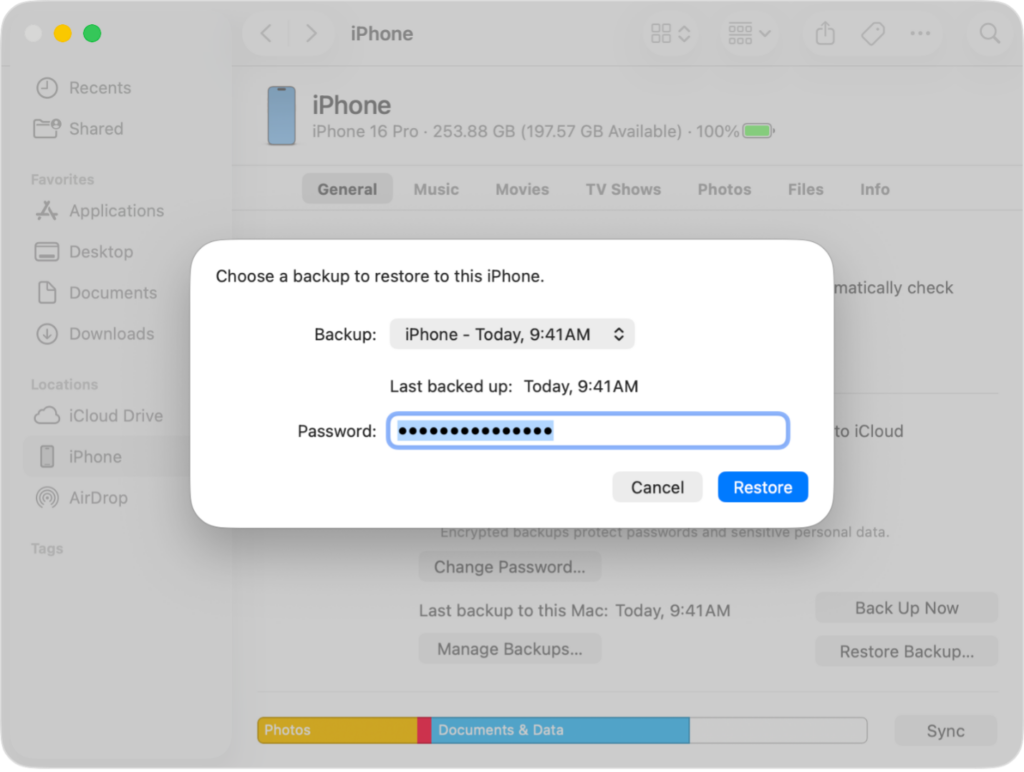
Step 3. Choose the Right Backup
Review the dates of each of the backup files and select the one that best suits your needs.
If the backup is protected by a password prompt, type that password and press Enter.
Tap the Restore button to start the restore process and wait until it is completed.
Part 4. Preview and Recover Selected Files with Dr.Fone
Dr.Fone – Data Recovery (iOS) is a tool that enables you to scan your iTunes backup for files and view the recoverable files beforehand. You can check photos, messages, contacts, notes, and documents, then decide which ones to recover. With Standard mode, it also supports free scan and preview, so you can check whether the needed data appears in the results before deciding to recover it.
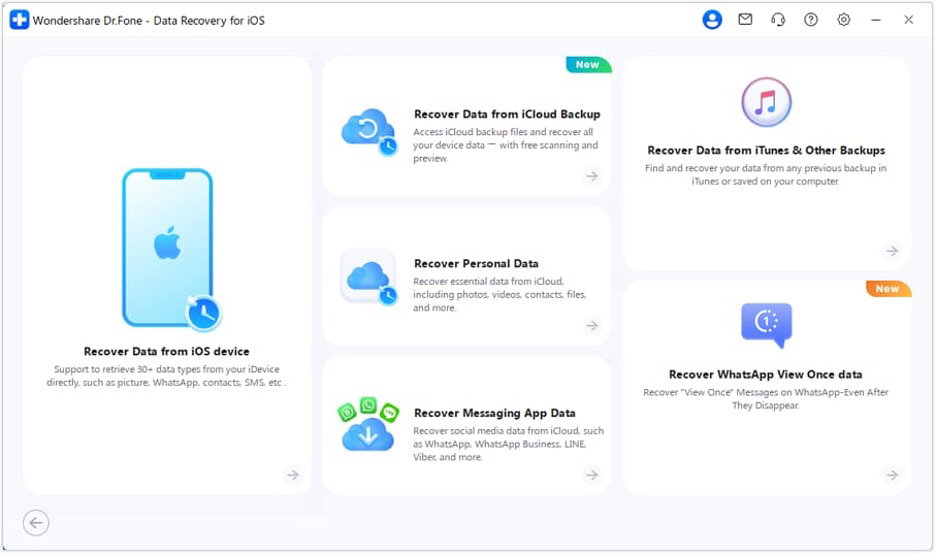
The functionality of this tool is not limited to scanning only since it allows selective data restore. For instance, if the selected data type is supported, it can directly go to your device, or the data file can be exported to your computer. Its read-only scanning is designed to avoid overwriting existing data.
Note: Keep in mind that available data types and recovery options vary by backup, device, and iOS version, and a preview does not guarantee that every file can be exported or restored.
How to restore selective files with Dr.Fone
Step 1: Open Dr.Fone and Select iTunes Recovery
Start Dr.Fone – Data Recovery (iOS) program on your PC. Go to Toolbox > Data Recovery, pick iOS, and then select the Recover Data from iTunes option.
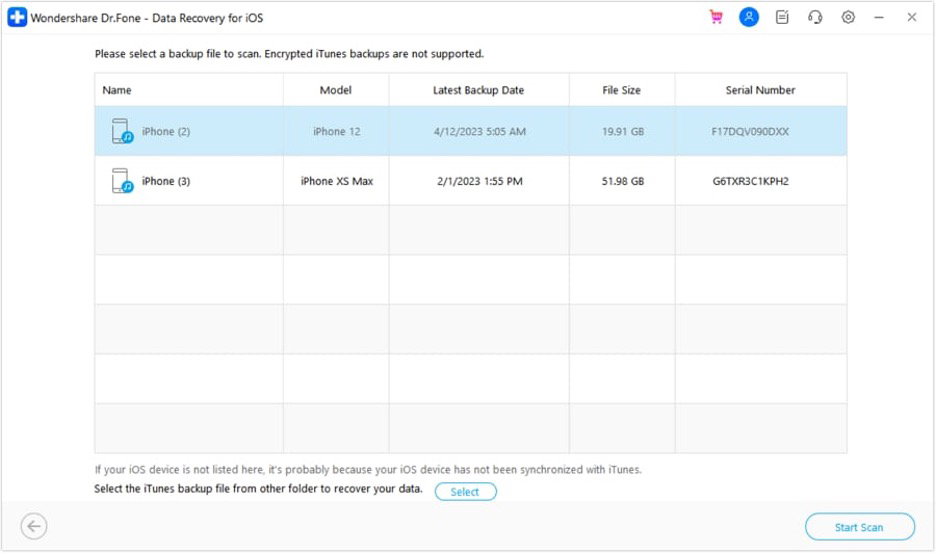
Step 2: Choose the Backup and Start Scanning
After scanning, Dr.Fone will show you a list of the iTunes backups it found on your computer. It is likely that there are several backups. Find the one that is likely to be most recent and click on it. Then click Start Scan.
Note: Available data types and recovery options can vary by source, mode, device, and iOS version.
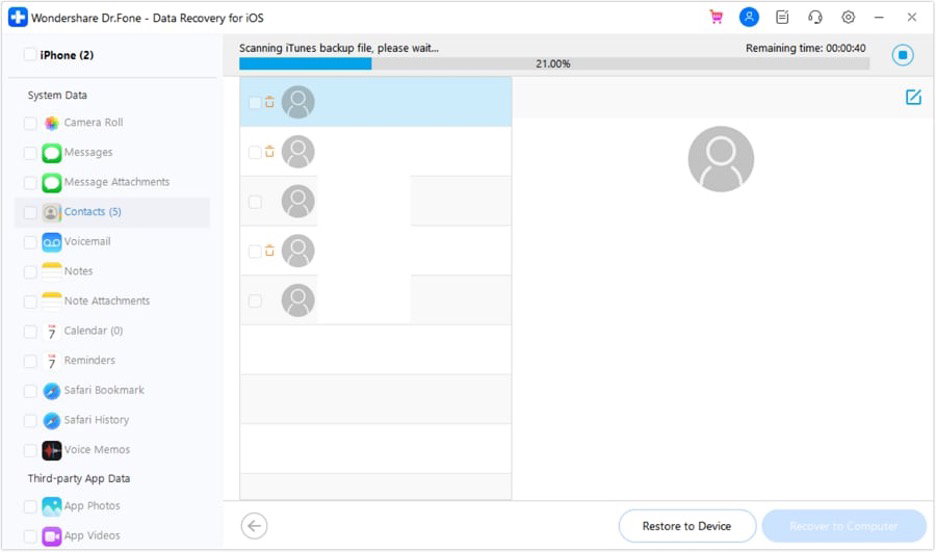
Step 3: Preview and Choose the Files to be Retrieved
Allow the scanning process to be completed, and then check out the results, and preview the data that is available. Only those files that you want to retrieve should be selected.
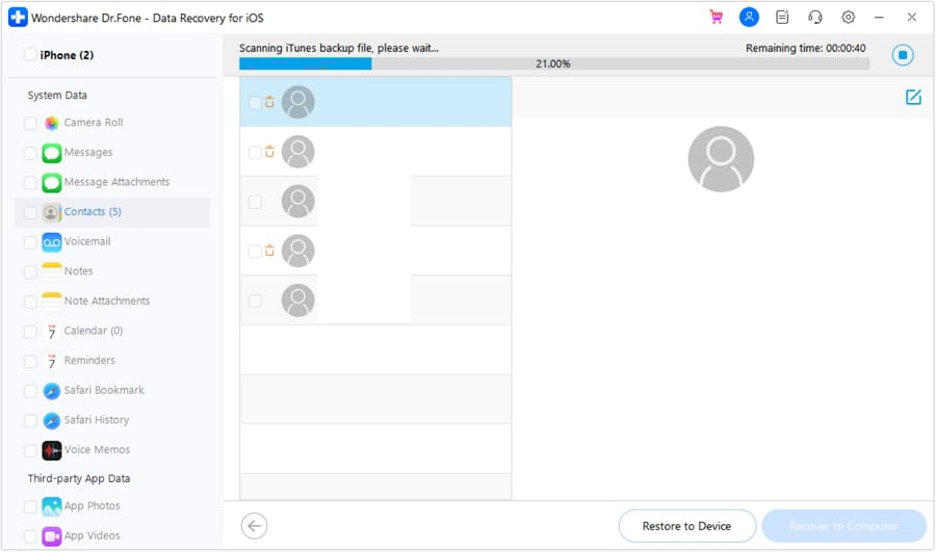
Step 4: Recover the Selected Data
Choose Recover to Computer to save the selected files locally. If supported for the selected data, you can also click Restore to Device.
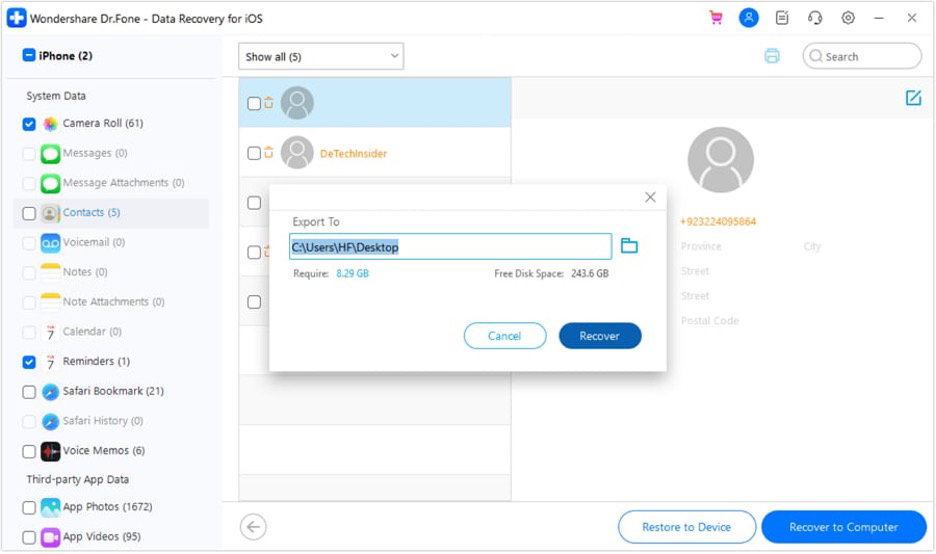
Part 5. Restore to Device vs Recover to Computer
After previewing data, Dr.Fone shows you two options for managing the files you’ve selected. The appropriate choice will depend on your desire to get the data back on an iOS device or just to have a copy saved on your computer.
- Restore on Device: Pick the supported files and click Restore to Device. The iOS device you see will be selected automatically in the pop-up menu. Click Continue and then perform the steps on the screen to finish. This method, however, cannot be used for data that does not support device restoration.
- Recover to Computer: In case you are going to keep your rescued files on your computer, choose them and click Recover to Computer. Then click Recover to store the selected files locally.
Conclusion
In iOS data recovery, if you only need to recover some files from your iTunes backup, you are not required to restore the whole backup to your iPhone.
Dr.Fone Data Recovery (iOS) makes it easy to scan your backups and pick out the files that you want to retrieve only.
After you have selected the files you want to recover, you can either download them to your computer using Recover to Computer or (provided your device supports it), go Restore to Device to transfer them back to your iOS device. But please keep in mind that you can recover only the data that was in the backup and that your device, iOS version, and selected data type must also support the recovery.
Follow Euro Weekly News on Google News
Get breaking news from Spain, travel updates, and expat stories directly on your Google News feed.
Follow on Google NewsSign up for personalised news
Subscribe to our Euro Weekly News alerts to get the latest stories into your inbox!
By signing up, you will create a Euro Weekly News account if you don't already have one. Review our Privacy Policy for more information about our privacy practices.





Nicola EWN
Nicola is a member of the editorial team specialising in features, digital content and online publishing. With broad experience across media and communications, she works across feature articles, editorial content and digital platforms, managing content across a range of subjects.
Comments